- Cross-platform
- Getting started
How to track one browser extension across Chrome, Edge and Firefox
Your extension ships to three stores and each one tells a different story. Learn how to line up installs, ratings, reviews and versions in a single view.
- Author
- Extenify Team
- Published
- Reading time
- 5 min read
On this page
Most browser extensions start life in the Chrome Web Store and then spread to Microsoft Edge Add-ons and Firefox Add-ons. The code is largely the same, but the three listings live completely separate lives. Each store has its own install counter, its own rating, its own review feed and its own review queue for new versions. If you only ever look at one of them, you are missing part of the picture.
This guide walks through why cross-store tracking matters, which numbers are worth comparing, and how to set up a single view of one extension in every store it ships to.
Why three listings drift apart
Publishing the same package to three stores does not produce three identical listings. Over a few months they drift, usually for boring reasons:
- Review queues move at different speeds. A release can be live on one store while it is still pending on another, so users on different browsers run different builds.
- Audiences differ. Firefox users often have different expectations from Chrome users, and that shows up in ratings and review tone.
- Listing edits get forgotten. A new screenshot, description or privacy policy link gets updated on the store you use most and left stale on the others.
- Store placement is separate. A category rank gained on Chrome says nothing about how the Edge listing is doing.
None of this is visible from inside your extension. It only shows up when you look at the public listings side by side.
The numbers worth comparing
Every store publishes a slightly different set of figures. Comparing them is still useful, as long as you compare like with like and focus on direction rather than exact totals.
| Signal | What it tells you | What to watch for |
|---|---|---|
| Installs or users | Reach on that store | A store that grows while others stay flat, or the reverse |
| Average rating | Overall satisfaction | One store rating noticeably lower than the rest |
| Rating count | How much the average can be trusted | A rating based on a handful of votes |
| Recent reviews | What users are saying right now | Complaints that only appear on one browser |
| Current version | Which build users actually get | One store stuck on an older release |
| Category rank | Visibility inside the store | Rank drops that follow a release or listing edit |
Two notes on reading this table. First, install figures are reported differently per store, so treat them as a trend on each store rather than a number to add up. Second, rating averages with very few votes swing easily, so always read the rating next to its count.
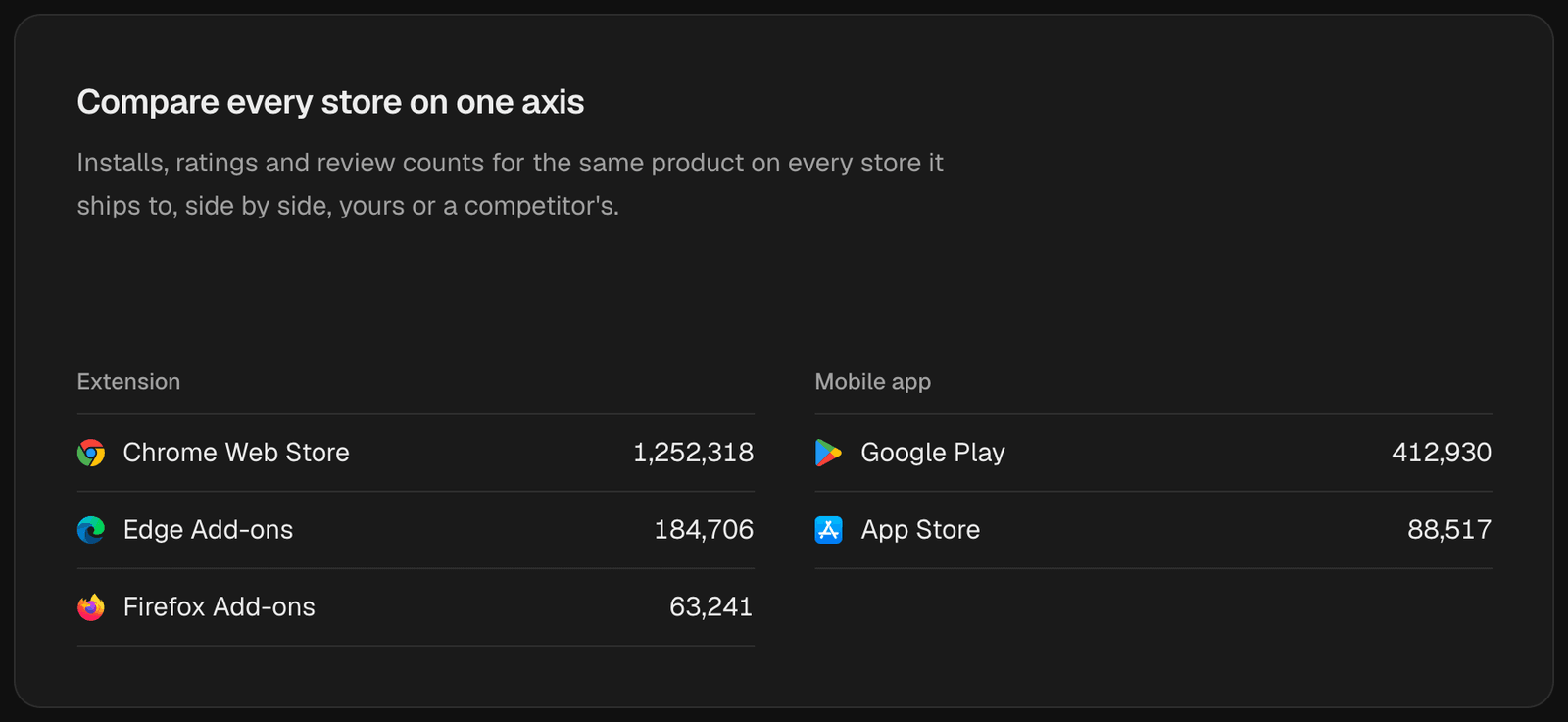
The same product on every store it ships to, one row per listing, so a store moving against the others stands out.
Setting up a unified view
The fastest way to get a cross-store view is to let a tool do the matching for you. In Extenify it takes about a minute and needs no code in your extension, because everything comes from public store listing data.
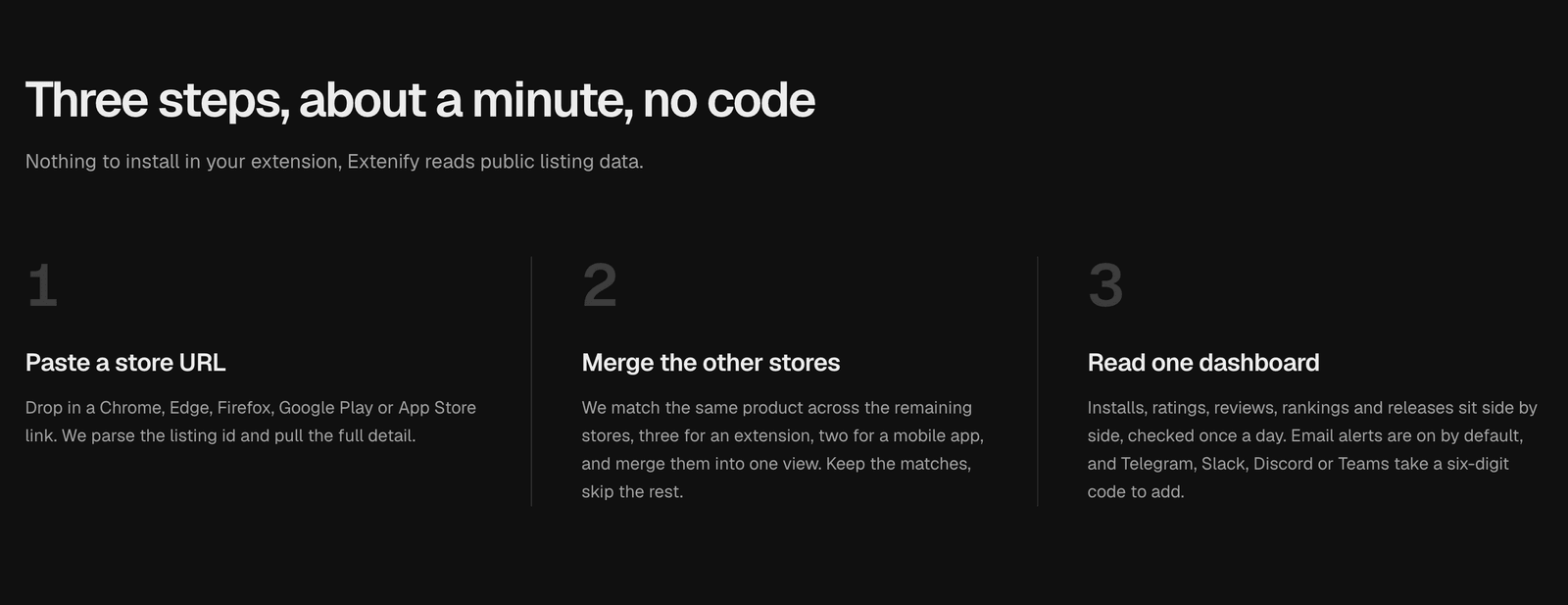
Setup is three steps and reads only public store listing data, so nothing ships inside your extension.
Step 1: paste one store URL
Start with the listing you know best, usually the Chrome Web Store page. Paste its URL and Extenify reads the listing id and pulls the full listing detail: installs, rating, reviews, version history and listing metadata.
Step 2: merge the other stores
Extenify then looks for the same product on the remaining stores. An extension can link up to three listings (Chrome, Edge and Firefox), one per store, and a mobile app up to two (Google Play and the App Store). You keep the matches that are genuinely yours and skip anything that is not.
Step 3: read the stores side by side
Once linked, the app has a cross-platform view where each store's installs, ratings and review counts sit next to each other. The growth view charts users, rating and category rank per platform on one timeline, with version markers so a dip can be tied to a release. You can toggle stores on and off to focus on one comparison at a time.
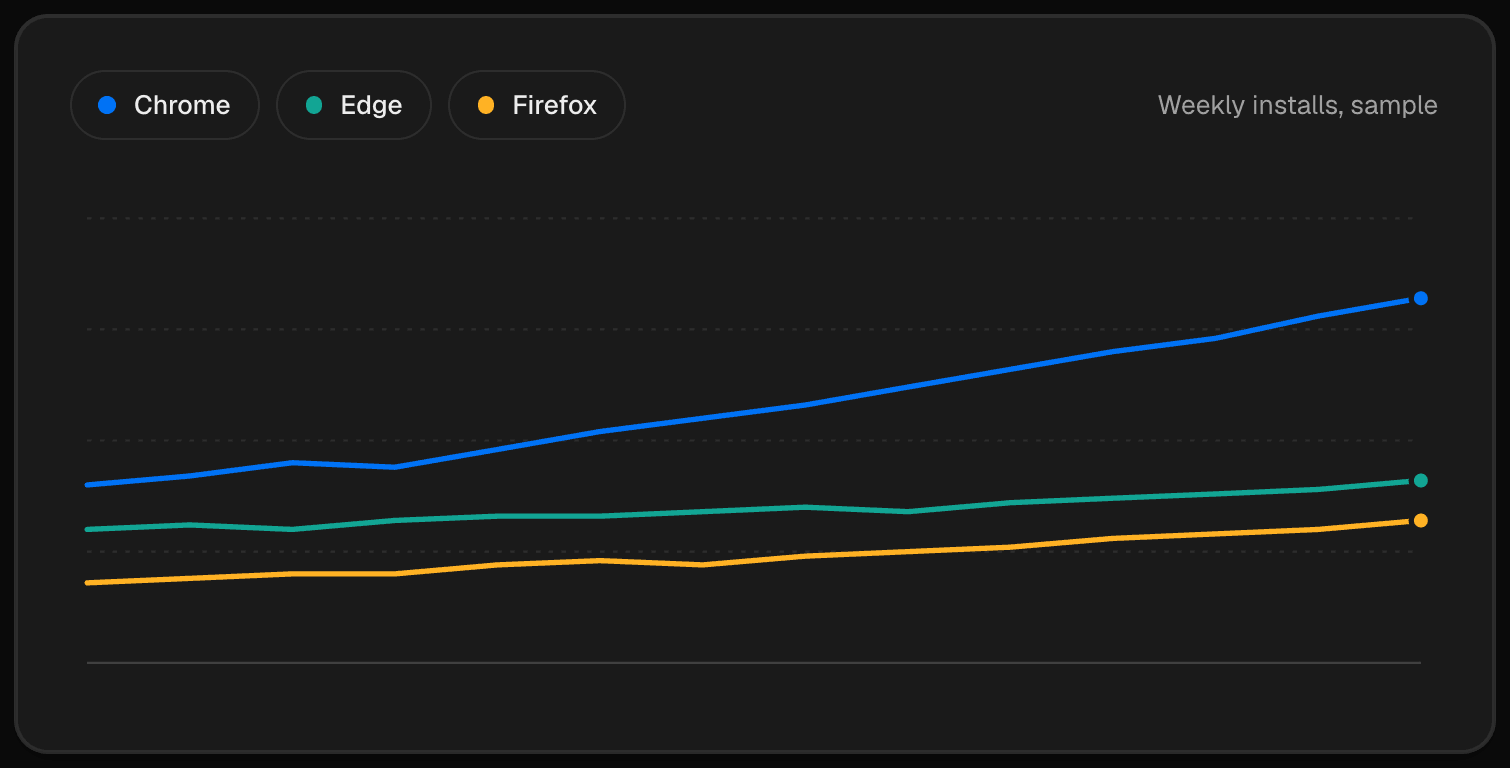
Weekly installs per store on one axis: Chrome grows fastest while Edge and Firefox climb more slowly.
Start history early
Store listings only ever show today's number. There is no public chart of how your rating looked last month, so history only exists from the day you start recording it. That is the single best argument for setting up tracking before you need it: when something goes wrong, the useful question is "what changed?", and you can only answer it if you have yesterday's value to compare against.
In Extenify, history starts the day you add a listing, and change detection compares each daily capture with the previous one. The free plan keeps seven days of growth history, and paid plans keep longer windows, which matters once you want to compare month over month.
Track competitors the same way
Because the data is public, nothing limits you to your own products. Adding a competitor's listings gives you the same cross-store picture for them: how fast they release, whether their Edge listing lags behind Chrome, and how their rating moves after an update. It is a low-effort way to spot a competitor's bad release, or to notice that a rival has started taking a store you have ignored seriously.
A quick checklist
Once your extension is tracked in every store, a short weekly review covers most of what matters:
- Compare install trends per store and note any store moving against the others.
- Check that every store runs the same version, and chase any listing that is behind.
- Read the rating next to its count on each store, not just the headline average.
- Skim new low-star reviews and look for complaints that only appear on one browser.
- Confirm that listing details (name, description links, privacy policy) match across stores.
If you would rather not remember to do this, the weekly performance report summarises the same numbers every Monday.
Summary
One extension, three stores, three sets of numbers. Tracking them separately means you notice problems late and on one browser at a time. Tracking them together turns drift into something you can see: a lagging version, a store-specific complaint, a rating that slipped only on Firefox. Set it up once, start collecting history today, and the next time a number moves you will know where and when it started.